
Last updated on 2026-10-04
Campaign management
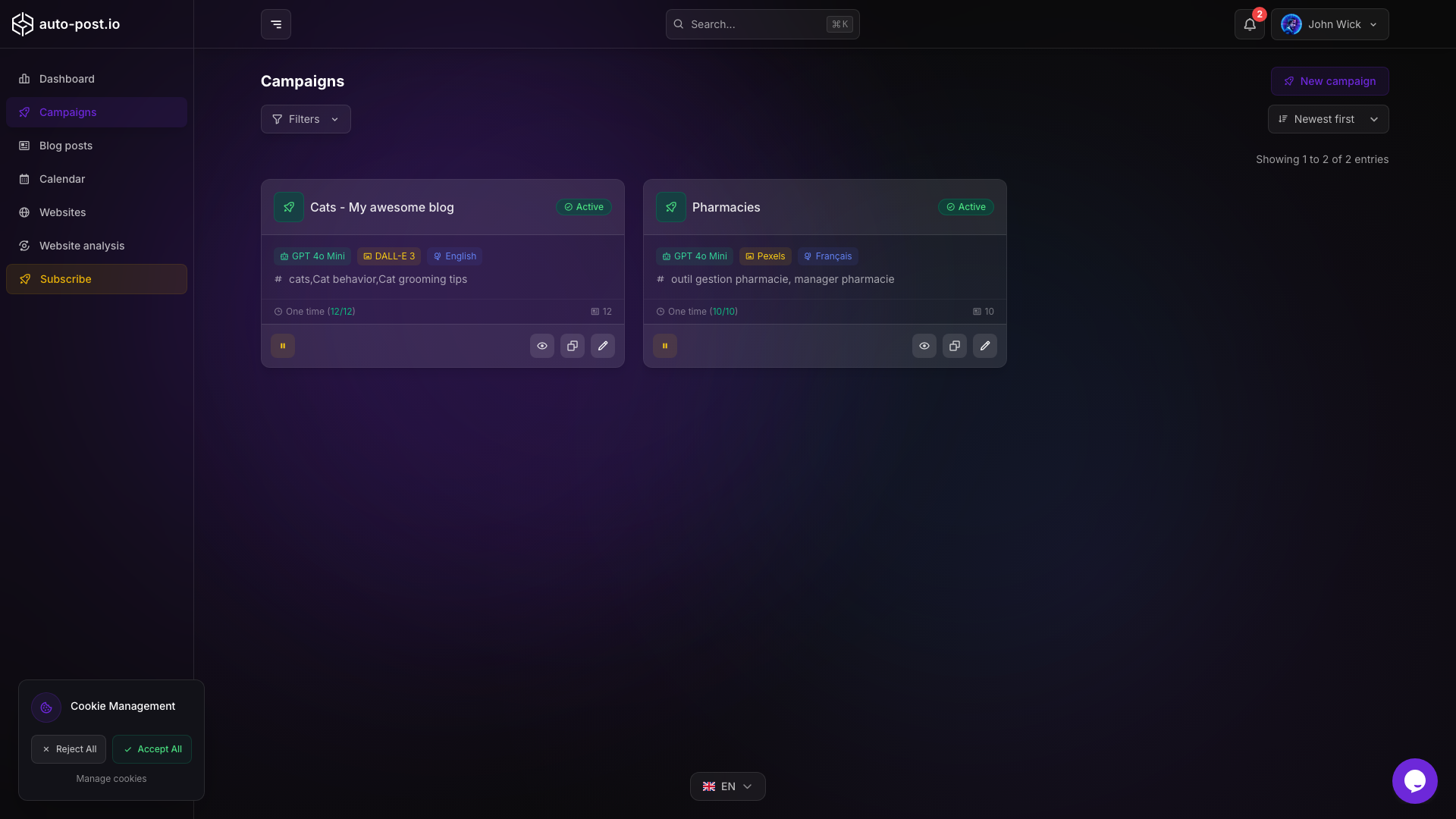
Campaigns define how auto-post.io generates and publishes articles. Open the Campaigns page to create, edit, pause, or trigger campaigns.
Campaign types
When you create a campaign, choose one of two types:
Recurring campaigns
Generate articles on a repeating schedule.
- Frequency: every N days, weeks, months, or years
- Preferred days (optional): limit generation to selected weekdays
- Preferred time (optional): queue generation around a specific time of day
One-time campaigns
Generate a fixed number of articles, then stop.
- Number of posts: total articles to generate
- Useful for launches, series, or tests
You can also trigger a campaign manually from the campaign page to queue generation immediately (when credits and status allow).
Campaign configuration
Content and targeting
- Keyword or topic: main subject for generation
- Website: target WordPress, Wix, Webflow, Shopify, or Payload CMS site
- Categories: site categories when the platform supports them
- Language: primary generation language
- Translation languages: optional extra languages for translated variants
- Custom instructions: optional guidance for tone or constraints
AI models and options
- Text model: provider model used for article generation (OpenAI, Google, Anthropic, and others). See AI models and auto-post.io/ai-models.
- Featured image model: every campaign article includes a featured image. You choose the image model (including lower-credit options); image generation cannot be disabled.
- Web search: optional research step (uses extra credits when enabled)
- Internal linking: optional links to existing content on the target site
- Auto-publish: publish after generation, or keep articles as drafts for review
Scheduling
See Advanced scheduling for preferred days, preferred time, and auto-publish details. Use the Calendar to review planned publications and campaign execution dates.
Campaign actions
From the campaigns list or campaign detail page you can:
- Enable or disable (pause) a campaign
- Edit settings
- Duplicate a campaign as a starting point
- Trigger generation now
- Delete a campaign
Bulk edit campaigns
Update several campaigns from the list without opening each one.
- Open the Campaigns page.
- Select campaigns with checkboxes, or use Select all.
- Choose Bulk edit.
- Enable only the settings you want to change, set their values, and apply.
Bulk edit can change:
- Active or paused status
- Automatic publishing
- Text AI model
- Featured image model
- Web search
- Internal linking
- Content language (and translation languages)
- Publication website and categories
Only enabled settings are applied. After a successful update, the list refreshes and the selection is cleared.
For article-level bulk publish, delete, and translate, see Bulk operations.
Credits and generation
Each generation consumes credits based on the selected text model, image model, and optional web search. Estimate costs when creating or editing a campaign, and check your balance under Account billing. See Pricing and credits.
If a campaign fails to generate or publish:
- Check your credit balance
- Verify the website connection on Websites
- Open the related article on Blog posts and republish if needed
- Review campaign settings (keyword, language, models, schedule)
Related documentation
TIP
Start with a weekly recurring campaign and auto-publish disabled so you can review the first articles before scaling frequency.
Last updated on 2026-10-04